

Free Project Plan Template
Create your project plan online with our free interactive planner — or download the Excel template. Add phases, assign tasks, set priorities, and track budgets.
Create Your Project Plan
Add phases and tasks, assign owners, set priorities and budgets. Print or save as PDF when you're done.
Project Details
What's in the Template
The download includes four templates in one workbook:
- Project Plan Template — high-level project tracking with status, priority, deadlines, and staffing
- Task Management Template (Task Management Template) — detailed task assignments with owners, dates, and status tracking
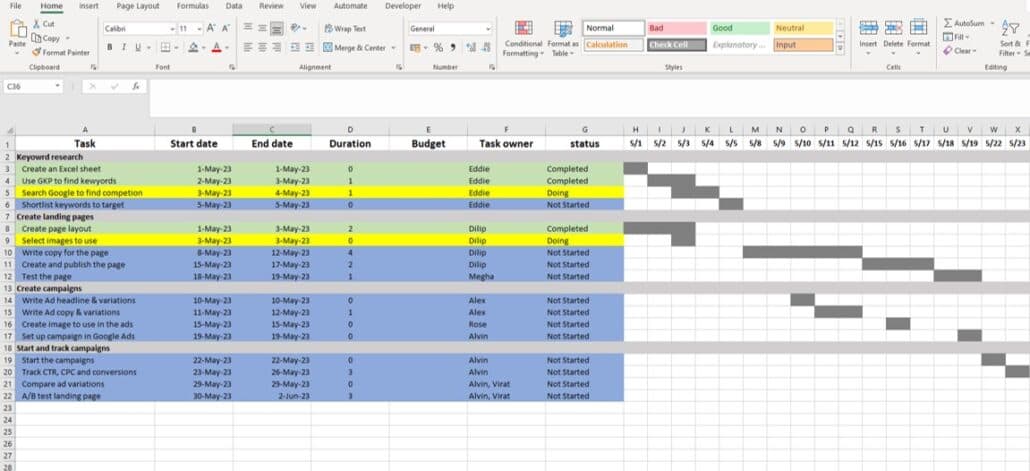
- Gantt Chart Template (Gantt Chart Template) — visual timeline for organizing project tasks and milestones
- Resource Allocation Template (Resource Allocation Template) — manage team member assignments across projects
The Excel workbook has three sheets:
- Instructions — how to use the template and customize it for your projects
- Sample project — a pre-filled example showing how to structure tasks, phases, and the Gantt chart
- Blank template — ready for your project data
The project plan tracks these fields for each task:
| Field | Purpose |
|---|---|
| Task name | What needs to be done |
| Phase | Which project phase the task belongs to |
| Start date | When work begins |
| End date | When work should be completed |
| Duration | Auto-calculated from start and end dates |
| Owner | Who is responsible |
| Status | Not started, in progress, or completed |
| Budget | Planned cost for the task |
The Gantt chart section auto-generates a visual timeline based on your start and end dates, color-coded by status (green = complete, yellow = in progress, blue = not started).
How to Create a Project Plan in Excel
If you want to build your own from scratch rather than using the template, here's the process:
Step 1
Create a new Excel worksheet. Add column headers in the first row: Task, Phase, Start Date, End Date, Duration, Owner, Status, Budget.
Step 2
Format the header row — bold, centered, font size 14. Set all columns to width 25 so information displays properly.
Step 3
Enter your project phases (e.g., Planning, Execution, Review). Leave 4-5 rows between each phase for tasks. Bold the phase names.
Step 4
Enter tasks under each phase. Select all tasks within a phase and click Increase Indent to visually nest them under the phase heading.
Step 5
Format the Start Date and End Date columns as Date cells.
Step 6
In the Duration column, create a formula: =End Date - Start Date to auto-calculate task duration in days. Copy to all task rows.
Step 7
Add color coding — use fill colors to distinguish phases from tasks and to indicate task status (green for complete, yellow for in progress, blue for not started).
Step 8
Create the Gantt chart section by adding date columns to the right. For each task, fill cells from the start date column to the end date column with a dark color to create horizontal bars representing the task timeline.
Or skip all of that and download the template — it has the formulas and formatting already built in.
What Should a Project Plan Include?
A complete project plan covers seven areas:
- 1Project scope — what's included and what's not, to prevent scope creep
- 2Objectives — specific, measurable outcomes the project must achieve
- 3Schedule — task timeline with start dates, end dates, and dependencies
- 4Budget — financial resources allocated and how costs will be tracked
- 5Risk management — potential risks and mitigation strategies
- 6Quality plan — how deliverables will be reviewed and approved
- 7Communication plan — how the team and stakeholders will stay aligned
This template covers scope, schedule, and budget directly. For risk, quality, and communication planning, you can add additional sheets to the workbook or track them in a separate document.
Need to track time spent on each project?
HiveDesk automatically tracks hours by project and task. $5/user/month.
When to Use Excel vs. Project Management Software
Excel project plans work well when:
- You're managing a small to mid-size project (under 50 tasks)
- Your team already knows Excel or Google Sheets
- You don't want the cost or complexity of dedicated software
- You need a quick plan you can share via email or cloud storage
- You manage repetitive projects and want to copy the template each time
Consider dedicated software when:
- You need real-time collaboration with many team members
- Projects have complex dependencies between tasks
- You need to track time against tasks automatically
- You're managing multiple concurrent projects across teams
- You need reporting dashboards and automated status updates
HiveDesk integrates with Asana for teams that need both project management software and time tracking. You can manage projects in Asana and track the time spent on each task in HiveDesk.
Tips for Managing Projects with This Template
Break projects into phases first, then tasks
This makes the Gantt chart readable and helps you track progress at the phase level.
Keep task names specific
"Set up Google Ads campaign" is better than "Marketing setup."
Update status weekly
The template is only useful if it reflects current reality. Automated time tracking eliminates the need for manual updates on hours worked.
Use the resource allocation template alongside this one
It prevents overloading team members when running multiple projects.
Save a clean copy as your master template
For each new project, copy the file rather than editing the original.
Frequently Asked Questions
Common questions about using project plan templates in Excel.
Excel doesn't include a project plan template by default. Microsoft offers some through their template gallery, but they're basic. This template includes task tracking, Gantt chart, and resource allocation in one workbook.
Yes. Download the Excel file, upload it to Google Drive, and open it with Google Sheets. The formulas and formatting will carry over.
Yes. Both the online planner and the Excel download are completely free for personal or commercial use. No sign-up required.
Yes. Click "Print / Save as PDF" to generate a clean, print-ready version. Your browser's print dialog lets you save it as a PDF or send it directly to a printer.
There's no hard limit beyond Excel's row capacity (over 1 million rows). In practice, project plans work best with under 100 tasks. For larger projects, break them into sub-projects with their own templates.
If you use Google Sheets or Excel with OneDrive/SharePoint, multiple team members can edit simultaneously. For the desktop Excel version, only one person can edit at a time.
Manage Projects with Built-in Time Tracking
Track hours against every project and task automatically. See who is working on what, monitor budgets, and generate timesheets. $5/user/month.